Logout
Click the power icon ⏻ in the top-right toolbar to end your SOGo 5 session. You'll be redirected to the login page.
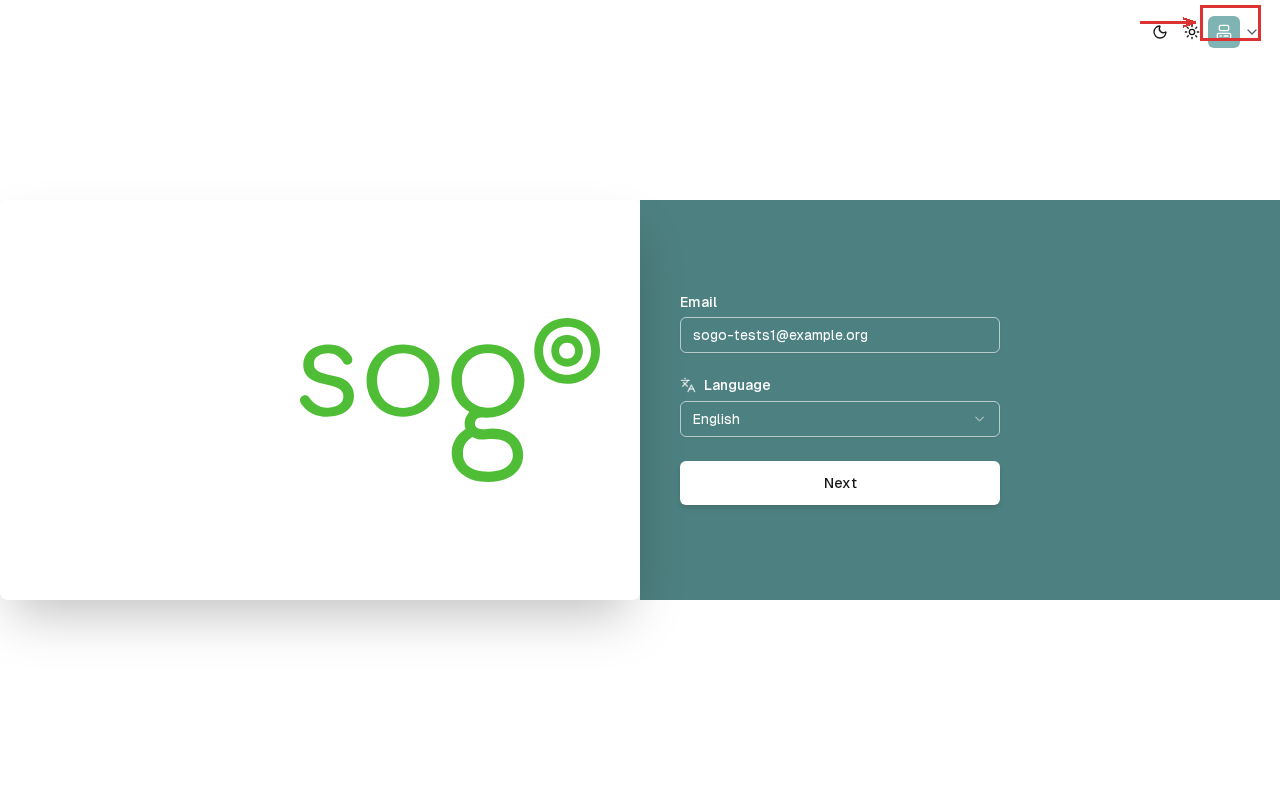
tip
On shared or public computers, always log out when you're done. Don't just close the browser tab.
Troubleshooting
| Issue: Description | Cause: What went wrong | Solution: How to fix it |
|---|---|---|
| Logout button not visible | Narrow screen | Widen the window or click the menu (☰) first |
| Session still active after logout | Cached page | Clear browser cache and close all SOGo tabs |
Accessibility
Keyboard Navigation
SOGo 5 supports full keyboard navigation for logout.
| Action | Keyboard Shortcut: What key to press | Notes: Additional information |
|---|---|---|
| Navigate to power icon | Tab to top toolbar | |
| Activate logout | Enter on power icon | |
| Confirm logout | Enter on dialog (if shown) |
Screen Reader Workflow
Tabthrough toolbar until "Power icon, button" is announcedEnterto click logout- Screen reader announces: "Logout successful" or redirect to login page
- You are returned to the login page, session ended
High Contrast Mode
SOGo 5 currently does not have built-in high contrast mode. Browser/OS-level alternatives:
- Windows:
Win+Ctrl+Ctoggles high contrast - macOS: System Preferences → Accessibility → Display → Increase contrast
- Browser Extensions: Dark Reader, High Contrast (Chrome)