Mail — Folder Management
Organize your emails using folders for archiving and easy access.
Prerequisites
- A SOGo 5 account with valid credentials
- You are logged into SOGo 5
Step-by-Step Instructions
Step 1: Open the Mail Module
In the sidebar, click Mail to open the inbox. The folder list appears on the left side of the email view.
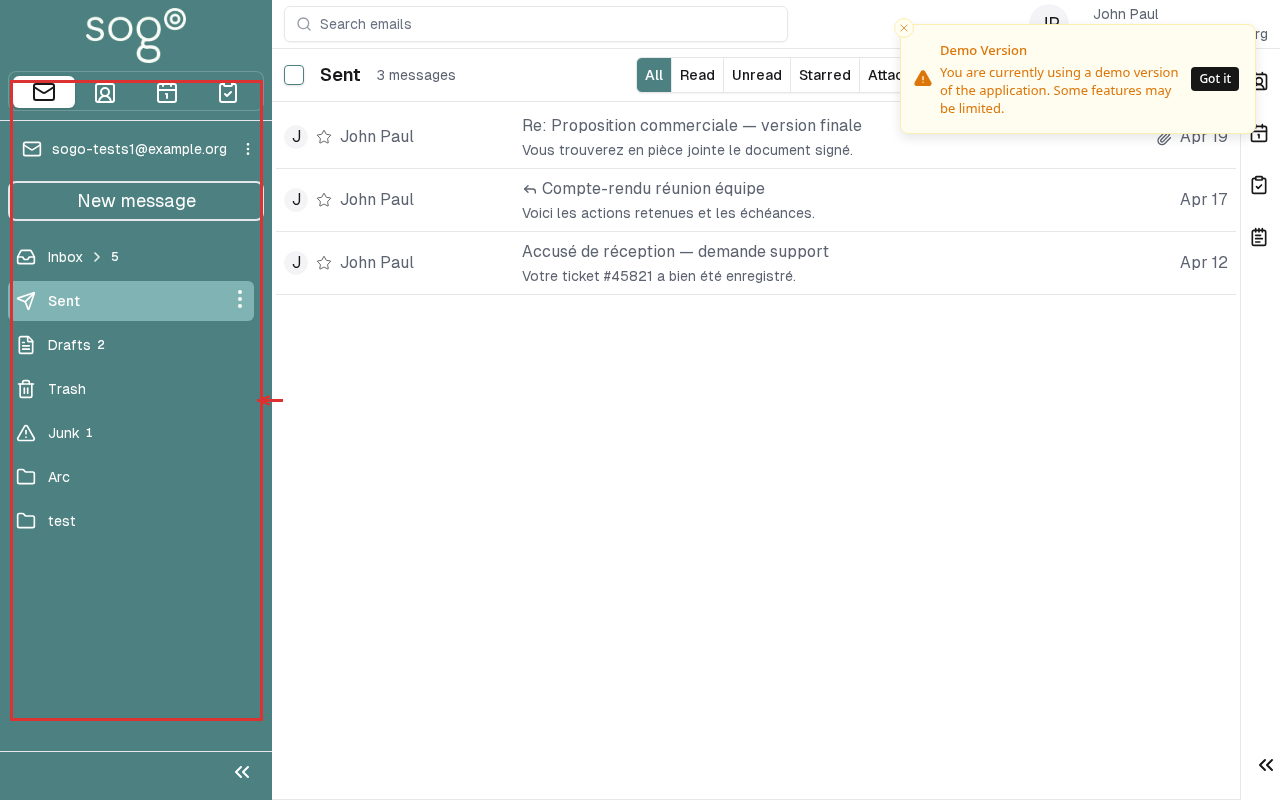
Step 2: Browse Folders
The folder list shows your default folders:
- Inbox — Receives incoming emails
- Sent — Contains emails you have sent
- Drafts — Stores draft emails not yet sent
- Trash — Holds deleted emails
- Spam — Contains messages identified as spam
Step 3: Create a New Folder
- Right-click in the folder list area
- Select New Folder from the context menu
- Enter a folder name
- Click Create
Step 4: Move Emails Between Folders
Method 1: Drag and Drop
- Click the email you want to move
- Drag it to the target folder in the list
- Release to drop
Method 2: Using the Move Button
- Select an email
- Click the Move button (folder icon with arrow)
- Select the target folder from the dropdown
info
Folder changes are synchronized with the server immediately. Your folder structure will be consistent across devices.
Folder Actions
| Action: Description | How To |
|---|---|
| Rename | Right-click folder → Rename |
| Delete | Right-click folder → Delete (cannot delete default folders like Inbox) |
| Empty Trash | Right-click Trash → Empty Trash |
Troubleshooting
| Issue: Description | Possible Cause | Solution |
|---|---|---|
| Cannot delete default folder | System folders cannot be deleted | Only custom folders can be deleted |
| Folder not visible | Sidebar collapsed | Expand the Mail section in the navigation |
| Move to folder fails | Permissions issue | Check if you have write access to the target folder |
Accessibility
Keyboard Navigation
This application supports keyboard navigation. No mouse required for completing this task.
| Action | Keyboard Shortcut: What key to press | Notes: Additional information |
|---|---|---|
| Navigate modules | Tab / Shift+Tab | |
| Select/activate | Enter or Space | |
| Cancel/close | Escape | |
| Navigate lists | Arrow keys |
Screen Reader Navigation Order:
- Sidebar navigation →
Tabto enter - Module content →
Arrow keysto navigate - Action buttons →
SpaceorEnterto activate - Forms →
Tabbetween fields, arrows for dropdowns
High Contrast Mode
SOGo supports high contrast and dark mode. Toggle via user preferences or use browser/OS-level accessibility settings:
- Windows:
Win+Ctrl+Ctoggles high contrast - macOS: System Preferences → Accessibility → Display → Increase contrast
- Browser Extensions: Dark Reader, High Contrast (Chrome)