Preferences & Settings
Customize your SOGo 5 experience by adjusting personal preferences such as language, time zone, notification settings, and default views.
Prerequisites
- A SOGo 5 account with valid credentials
- You are logged into SOGo 5
Step-by-Step Instructions
Step 1: Open Preferences
Click the gear icon ⚙ (Settings) in the top toolbar to open the Preferences page.
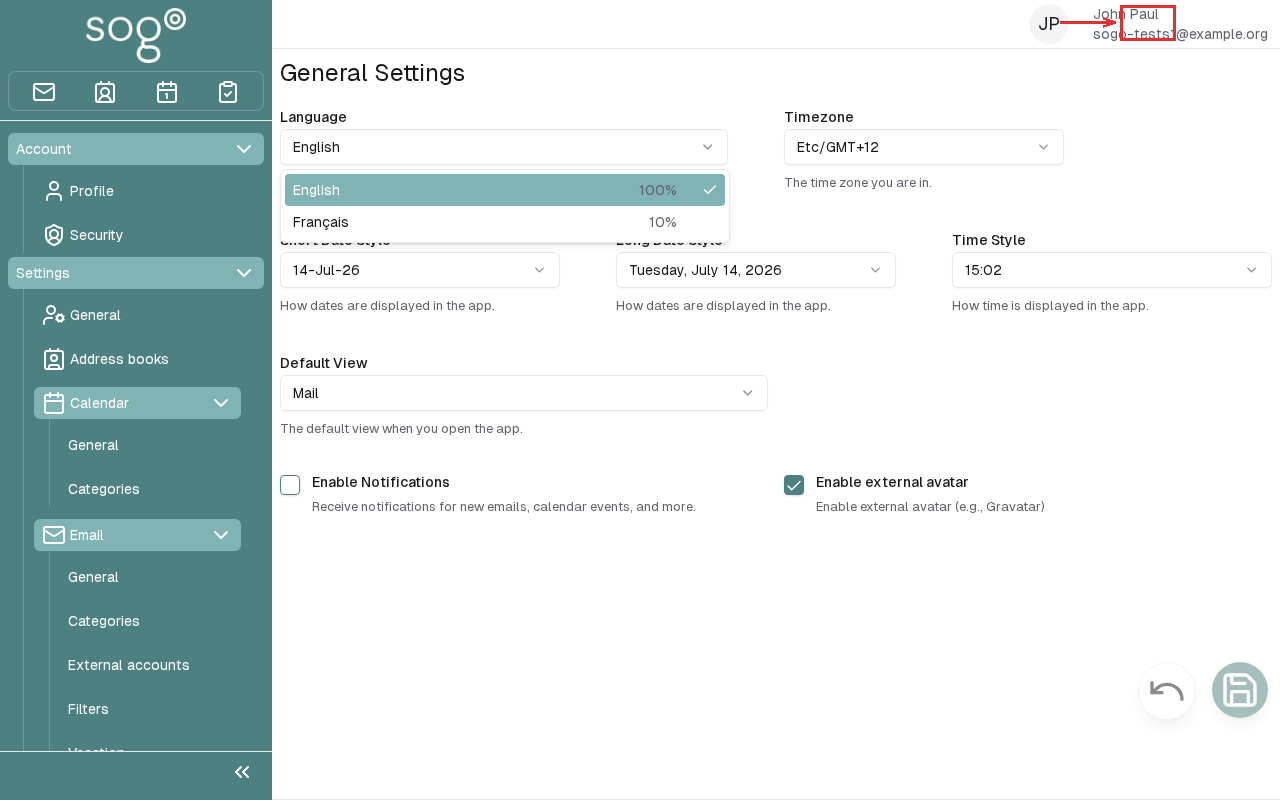
Step 2: General Settings
The General tab allows you to configure:
| Setting: Description | Description | Example |
|---|---|---|
| Language | Interface language | Deutsch, English |
| Time Zone | Your local time zone | Europe/Berlin |
| Date Format | How dates are displayed | DD.MM.YYYY |
| Time Format | 12-hour vs 24-hour | 24-hour format |
| First Day of Week | Which day starts the week | Monday |
Step 3: Notification Preferences
Switch to the Notifications tab to configure:
- Email notifications for new calendar events
- Reminder emails before upcoming events
- Digest frequency (daily, weekly, or per-event)
Configuration Options
Interface Settings
- Theme: Choose between light and dark themes (if available)
- Default Module: Which module to show on login (Mail, Calendar, or Contacts)
- Items per Page: How many items to show in lists
Calendar Defaults
| Preference: Description | Description |
|---|---|
| Default View | Day, Week, Month, or Year |
| Working Hours | Define your work day start and end times |
| Default Event Duration | Length of new events (30 min, 1 hour, etc.) |
Troubleshooting
| Issue: Description | Possible Cause | Solution |
|---|---|---|
| Settings not saving | Session timeout | Log out and back in, then try again |
| Language change not applied | Requires page reload | Refresh the page after changing the language setting |
| Calendar defaults not applying | Module-specific override | Check if your calendar has its own settings override |
Accessibility
Keyboard Navigation
This application supports keyboard navigation. No mouse required for completing this task.
| Action | Keyboard Shortcut: What key to press | Notes: Additional information |
|---|---|---|
| Navigate modules | Tab / Shift+Tab | |
| Select/activate | Enter or Space | |
| Cancel/close | Escape | |
| Navigate lists | Arrow keys |
Screen Reader Navigation Order:
- Sidebar navigation →
Tabto enter - Module content →
Arrow keysto navigate - Action buttons →
SpaceorEnterto activate - Forms →
Tabbetween fields, arrows for dropdowns
High Contrast Mode
SOGo supports high contrast and dark mode. Toggle via user preferences or use browser/OS-level accessibility settings:
- Windows:
Win+Ctrl+Ctoggles high contrast - macOS: System Preferences → Accessibility → Display → Increase contrast
- Browser Extensions: Dark Reader, High Contrast (Chrome)