Subscribe to an iCal Feed
Import external calendars into your SOGo 6 calendar — public holidays,
team calendars, or any .ics feed available online.
Prerequisites
- A SOGo 6 account with valid credentials
- You are logged into SOGo 6
- A URL to an iCal feed (
.icsfile or CalDAV endpoint)
Step-by-Step Instructions
Step 1: Find an iCal Feed URL
You need the web address (URL) of an iCal feed. Common examples:
| Source | Example URL: Calendar address example |
|---|---|
| Public holidays | https://calendar.google.com/calendar/ical/.../basic.ics |
| Team calendar | https://teamup.com/.../events.ics |
| Shared SOGo 6 calendar | https://sogo.example.com/SOGo/dav/username/calendar/shared/ |
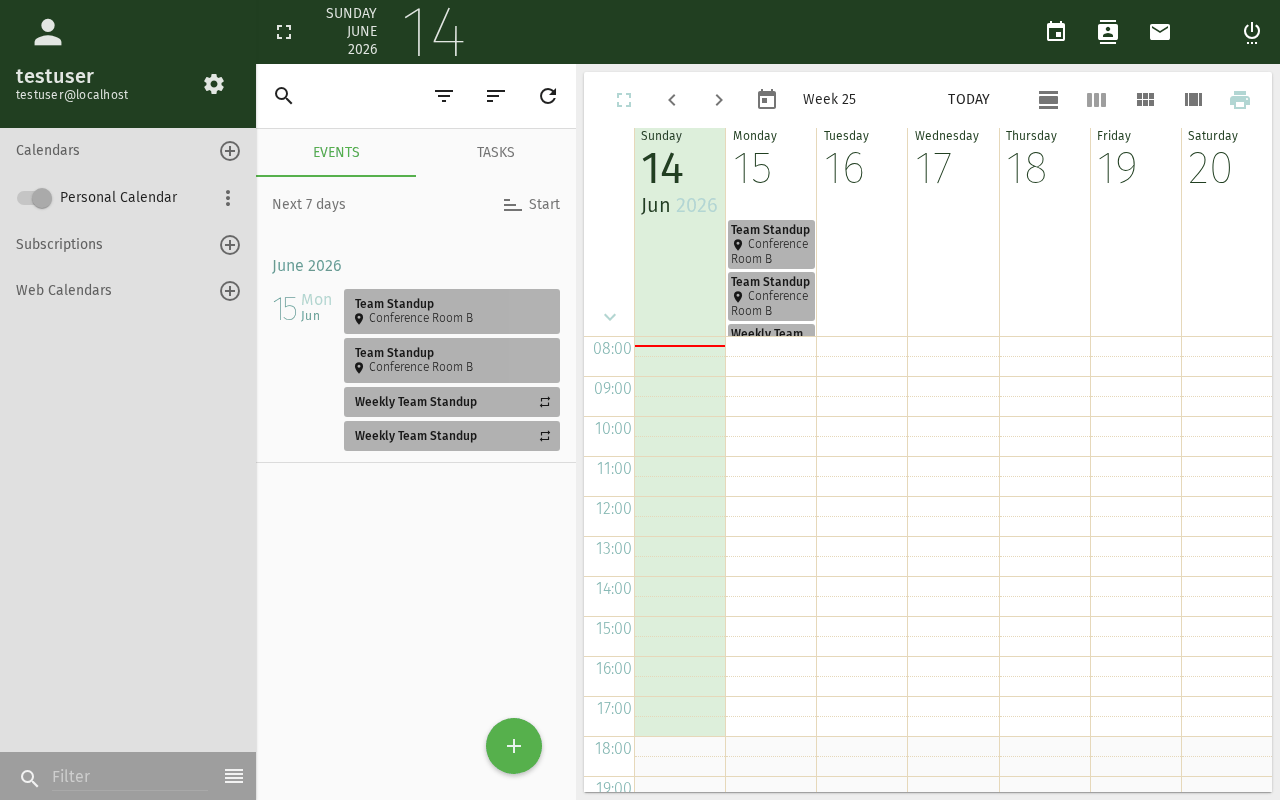
Step 2: Open Calendar Settings
- Click Calendar in the sidebar
- Locate the calendar list on the left side
- Click the gear icon ⚙ next to the calendar section header
- Select Subscribe to URL
Step 3: Enter the Feed URL
In the subscription dialog:
- URL: Paste the iCal feed URL
- Name: Enter a display name (e.g., "German Holidays")
- Color: Choose a calendar color for visibility
Step 4: Configure Sync Options
| Option | Description: What this option does |
|---|---|
| Refresh interval | How often to check for updates (every hour, daily, etc.) |
| Remove reminders | Strip alarm information from external events |
| Remove attachments | Don't download external file attachments |
Recommended defaults: Refresh daily, remove reminders (external calendars often have irrelevant alarms).
Step 5: Save the Subscription
Click Subscribe or OK. The calendar appears in your calendar list with a subscription icon 📡.
Managing Subscriptions
View Subscribed Events
Subscribed calendars work like your own — events appear in the calendar view. You can toggle visibility by checking/unchecking the calendar in the list.
Refresh Manually
Right-click the subscribed calendar → Refresh to fetch the latest data immediately.
Edit Subscription Properties
Right-click the calendar → Properties:
- Change the display name or color
- Update the feed URL
- Adjust refresh interval
Unsubscribe
Right-click the calendar → Unsubscribe or Delete. The calendar is removed from your view. The source is unaffected.
Troubleshooting
"Invalid calendar URL"
- Verify the URL is accessible (try opening it in a browser)
- The URL must return valid iCalendar (
.ics) data - Some public feeds require authentication
Calendar not updating
- Check the refresh interval setting
- Manually refresh: right-click → Refresh
- The feed provider may have changed the URL
Events have wrong times
- SOGo 6 converts all dates to your configured timezone
- Check your timezone in Settings → General → Timezone
- Some iCal feeds don't include timezone info — these default to UTC
Conclusion
iCal subscriptions let you overlay external calendars onto your SOGo 6 view — perfect for public holidays, team schedules, and third-party calendar feeds.
Accessibility
Keyboard Navigation
SOGo 6 supports full keyboard navigation for subscribing to calendars.
| Action | Keyboard Shortcut | Notes |
|---|---|---|
| Navigate to Calendar | Alt+M, Tab to Calendar | |
| Open subscription dialog | Ctrl+Shift+S or gear icon | |
| Select calendar type | Arrow keys in dropdown | |
| Enter calendar URL | Tab to URL field, type | |
| Display name field | Tab, type name | |
| Refresh frequency | Arrow key to select | |
| Subscribe or save | Ctrl+S or Enter |
Screen Reader Workflow
Subscribing to External Calendar
Step 1: Navigate to Calendar Module
Alt+Mto focus sidebar- Arrow keys to "Calendar"
Enterto open calendar view
Step 2: Open Subscription Dialog
- Gear icon settings or press
Ctrl+Shift+S - "Subscribe to Calendar" option
- Press
Enter
Step 3: Select Calendar Type
- Tab to calendar type dropdown
- Arrow keys to select (iCal, CalDAV, etc.)
- Press
Enter
Step 4: Enter Calendar Details
- Tab to URL field
- Type or paste calendar URL
- Tab to display name field
- Type friendly name (e.g., "Team Calendar")
- Tab to refresh frequency
- Select frequency with arrow keys
Step 5: Complete Subscription
- Tab to "Subscribe" or "Save" button
- Press
Enter - Screen reader announces calendar added
Common Screen Reader Announcements:
| Announcement | Meaning | Action |
|---|---|---|
| "Subscribe to calendar, dialog" | Subscription dialog open | Select calendar type |
| "Calendar type, combo box" | Calendar format selector | Arrow to select type |
| "URL, edit" | Calendar address field | Type full calendar URL |
| "Display name, edit" | Friendly calendar name | Type memorable name |
| "Refresh frequency" | How often to sync | Arrow to select interval |
| "Calendar subscribed" | Success | Calendar now visible |
Visual Content Descriptions
calendar-subscribe.png: This 3-second animated GIF shows subscribing to an external calendar.
- Frame 1 (0-0.8s): Calendar view with Calendars list on left
- Frame 2 (0.8-2s): Subscription dialog open, calendar type dropdown showing "iCal/ICS" selected, URL field populated with calendar address, display name "Team Calendar" typed
- Frame 3 (2-3s): Calendar list now shows "Team Calendar" with subscribed icon, refresh frequency set to "Every 30 minutes"
High Contrast Mode
SOGo 6's dark mode and high contrast mode work with all sections described above. Toggle via: Settings button (gear icon) → General → Theme → Dark/High Contrast.