Calendar Views
Switch between different calendar views to see your schedule at the right level of detail — from a focused day overview to a full month at a glance.
Prerequisites
- A SOGo 6 account with valid credentials
- You are logged into SOGo 6
Step-by-Step Instructions
Step 1: Open the Calendar Module
In the sidebar navigation on the left, click Calendar to open the calendar view.
Step 2: Switch Between Views
The calendar opens in Week view by default. Use the view switcher buttons in the top toolbar to change between available views.
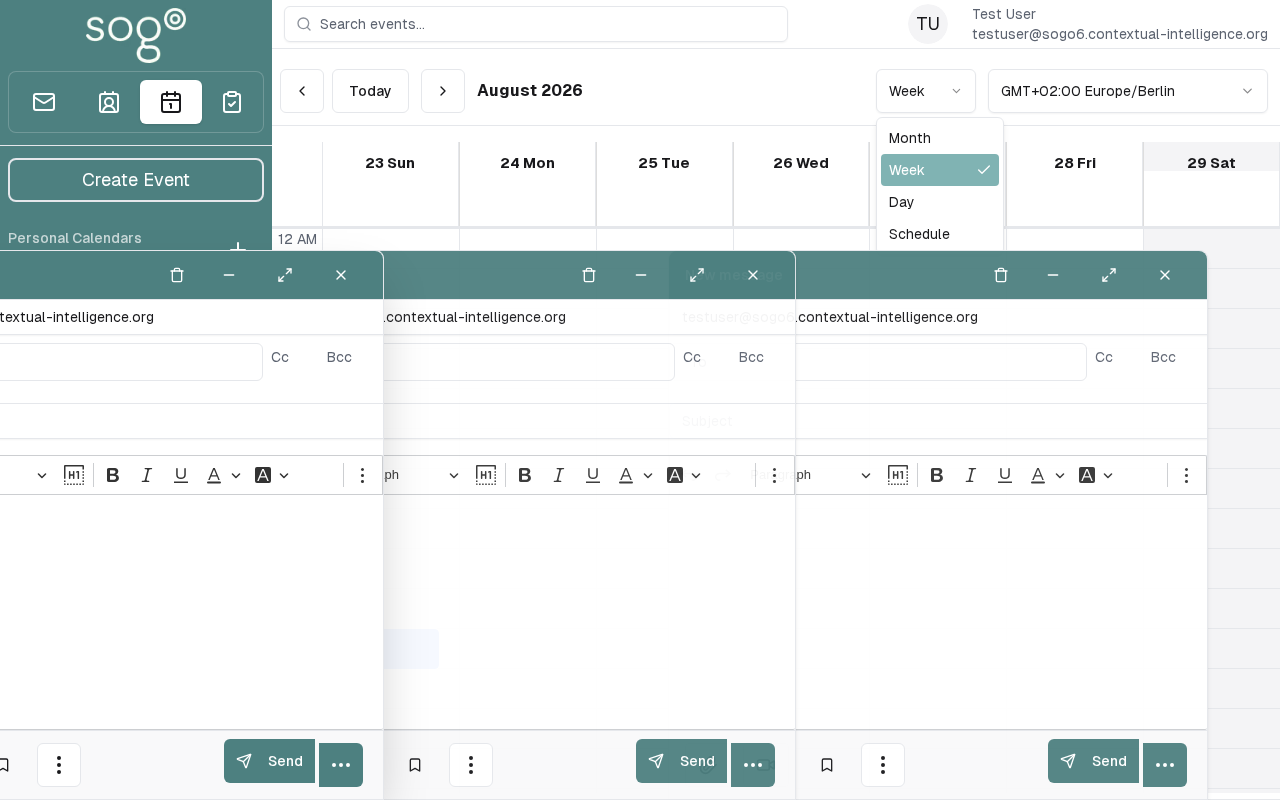
Available views:
| View: Description | Icon | Description |
|---|---|---|
| Day | 1 | Detailed view of a single day's events in hourly slots |
| Week | 7 | Five-day work week view (default) |
| Month | 31 | Full month grid for a broader overview |
Step 3: Navigate Through Time
Use the arrow buttons (◀ ▶) next to the date to move forward or backward:
- In Day view: moves one day at a time
- In Week view: moves one week at a time
- In Month view: moves one month at a time
- Click Today (or Heute) to jump back to the current date
Step 4: Quick Date Navigation
Click the date header (e.g., "June 15–19, 2026") to open a date picker for jumping to a specific date.
Keyboard shortcut: Press T to jump to Today from any view.
View Comparison
| Feature: Description | Day | Week | Month |
|---|---|---|---|
| Hour-by-hour timeline | Yes | Yes | No |
| All-day events | Yes | Yes | Yes |
| Recurring events | Shows instances | Shows instances | Shows instances |
| Best for | Detailed planning | Weekly overview | Monthly planning |
Accessibility
Keyboard Navigation
SOGo 6 supports full keyboard navigation for switching between calendar views.
| Action | Keyboard Shortcut | Notes |
|---|---|---|
| Navigate modules | Tab / Shift+Tab | |
| Select/activate | Enter or Space | |
| Cancel/close | Escape | |
| Navigate lists | Arrow keys |
Screen Reader Navigation Order:
- Sidebar navigation →
Tabto enter - Module content →
Arrow keysto navigate - Action buttons →
SpaceorEnterto activate - Forms →
Tabbetween fields, arrows for dropdowns
High Contrast Mode
SOGo supports high contrast and dark mode. Toggle via user preferences or use browser/OS-level accessibility settings:
- Windows:
Win+Ctrl+Ctoggles high contrast - macOS: System Preferences → Accessibility → Display → Increase contrast
- Browser Extensions: Dark Reader, High Contrast (Chrome)