Edit & Delete Contacts
Learn how to update contact information or remove contacts from your SOGo 6 address book.
Prerequisites
- A SOGo 6 account with valid credentials
- You are logged into SOGo 6
- At least one existing contact in your address book
Part 1: Edit a Contact
Step 1: Select a Contact
In the sidebar navigation on the left, click Contacts to open the address book.
Find the contact you want to edit and click on their name or entry.
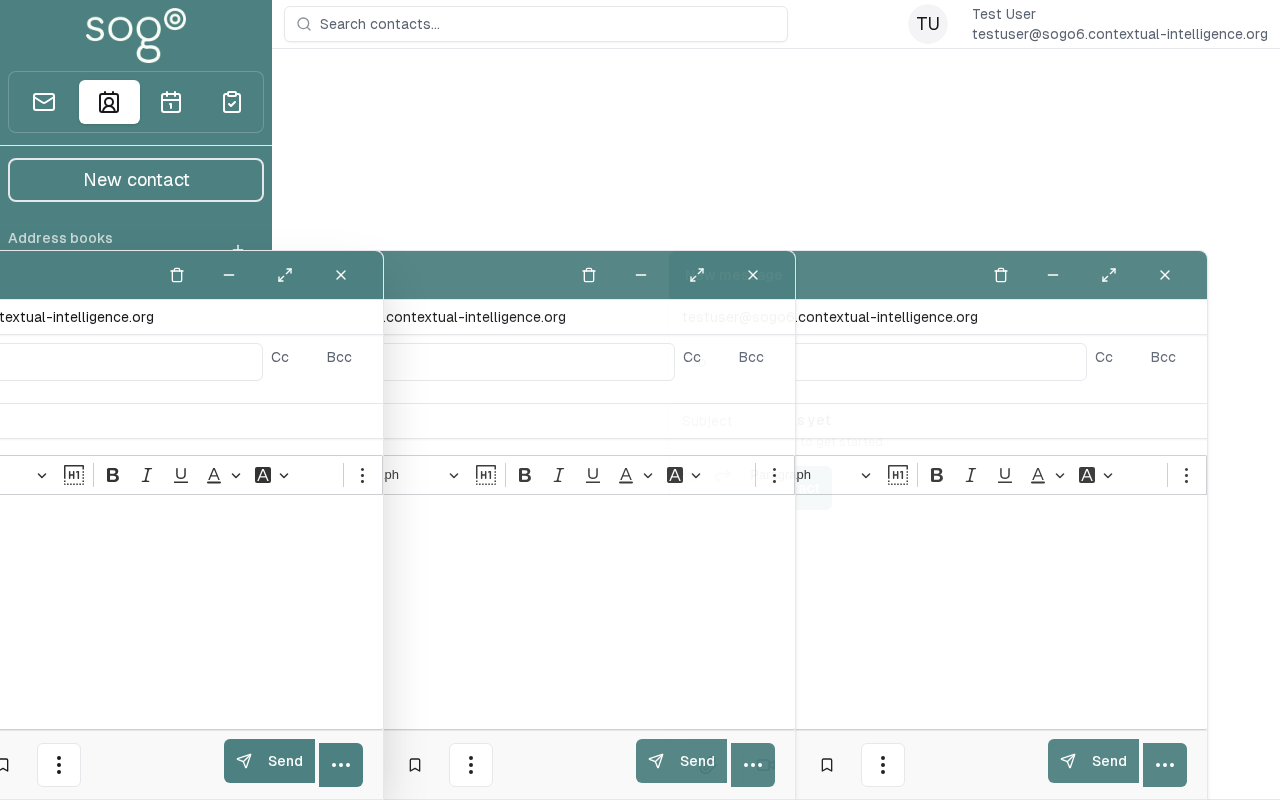
Step 2: Modify Contact Details
The contact editor allows you to change:
| Field: Description | Description |
|---|---|
| First Name | Given name |
| Last Name | Surname / family name |
| Primary email address | |
| Phone | Telephone number |
| Mobile | Mobile/cell phone number |
| Company | Organization or employer |
| Notes | Free-text notes about the contact |
To edit a field:
- Click inside the field you want to change
- Update the text as needed
- Click Save to apply all changes at once
Step 3: Save Changes
Click the Save button to persist your changes. The contact details will update immediately.
Part 2: Delete a Contact
Step 1: Open the Contact
Click the contact you want to remove from your address book.
Step 2: Delete
- Click the Delete button in the contact editor
- Confirm the deletion when prompted
warning
Deletion is permanent. Once deleted, the contact cannot be recovered.
Troubleshooting
| Issue: Description | Possible Cause | Solution |
|---|---|---|
| Cannot edit contact | Read-only address book (shared by another user) | You can only view contacts in shared address books |
| Changes not saving | Session timeout | Refresh the page and try again |
| Wrong contact shown | Search filter active | Clear any search terms in the contact list |
Accessibility
Keyboard Navigation
SOGo 6 supports full keyboard navigation for editing and deleting contacts.
| Action | Keyboard Shortcut | Notes |
|---|---|---|
| Navigate modules | Tab / Shift+Tab | |
| Select/activate | Enter or Space | |
| Cancel/close | Escape | |
| Navigate lists | Arrow keys |
Screen Reader Navigation Order:
- Sidebar navigation →
Tabto enter - Module content →
Arrow keysto navigate - Action buttons →
SpaceorEnterto activate - Forms →
Tabbetween fields, arrows for dropdowns
High Contrast Mode
SOGo supports high contrast and dark mode. Toggle via user preferences or use browser/OS-level accessibility settings:
- Windows:
Win+Ctrl+Ctoggles high contrast - macOS: System Preferences → Accessibility → Display → Increase contrast
- Browser Extensions: Dark Reader, High Contrast (Chrome)