Contacts — Import & Export
Migrate contacts between applications using vCard import/export.
Prerequisites
- A SOGo 6 account with valid credentials
- You are logged into SOGo 6
Step-by-Step Instructions
Step 1: Open the Contacts Module
In the sidebar, click Contacts to open the address book.
Step 2: Access Actions Menu
Click the Actions menu button (often a downward arrow or three dots) near the top of the contact list.
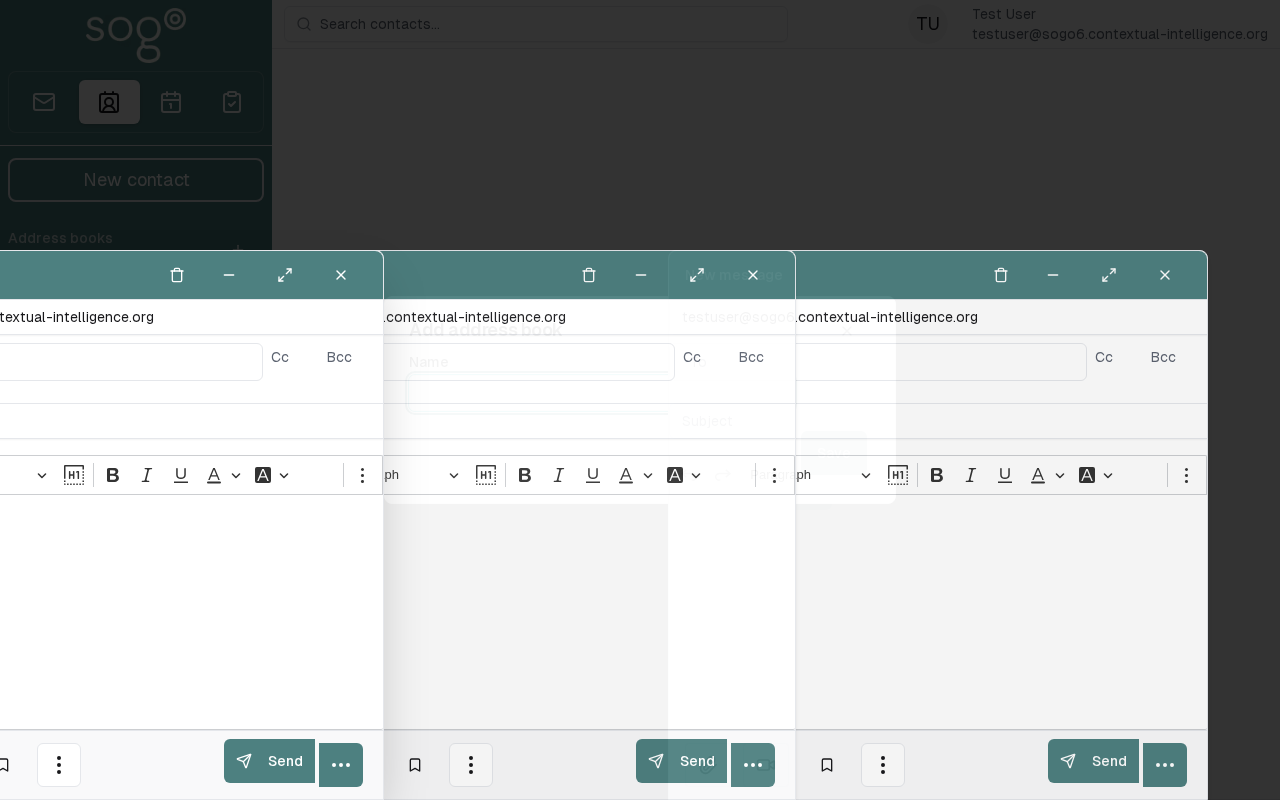
Step 3: Export Contacts
- Select Export from the Actions menu
- Choose the address book to export
- The contacts download as a
.vcf(vCard) file
Step 4: Import Contacts
- Click Import from the Actions menu
- Select the
.vcffile you want to import - Choose the target address book
- Select how to handle duplicates:
- Skip — Do not import duplicates
- Update — Replace existing contacts with imported data
- Add as new — Import as separate contact
- Click Import to begin
info
vCard (.vcf) is the standard format for sharing contacts across applications like Microsoft Outlook, Apple Contacts, Gmail, and more.
Import Options
| Duplicate Handling: Description | Description |
|---|---|
| Skip duplicates | Ignores contacts with the same email address |
| Update existing | Overwrites existing contact data with imported information |
| Add all | Imports all contacts, creating duplicates if necessary |
Export Options
| Format: Description | Description | Typical Size (100 contacts) |
|---|---|---|
| vCard 3.0 | Standard vCard format | ~25 KB |
| vCard 4.0 | Newer format with extended fields | ~30 KB |
| CSV | Comma-separated values for spreadsheet apps | ~15 KB |
tip
To back up your entire address book, periodically export all contacts to a vCard file and store it in a safe location.
Troubleshooting
| Issue: Description | Possible Cause | Solution |
|---|---|---|
| Import/Export actions not visible | Feature not enabled | Contact your administrator |
| Import fails | Corrupted vCard file | Open the file in a text editor and verify format |
| Contacts appear twice | Duplicate handling not selected | Choose "Skip duplicates" during import |
| Specific fields missing | Format incompatibility | Convert the vCard to vCard 3.0 format and retry |
Accessibility
Keyboard Navigation
SOGo 6 supports full keyboard navigation for importing and exporting contacts.
| Action | Keyboard Shortcut | Notes |
|---|---|---|
| Navigate modules | Tab / Shift+Tab | |
| Select/activate | Enter or Space | |
| Cancel/close | Escape | |
| Navigate lists | Arrow keys |
Screen Reader Navigation Order:
- Sidebar navigation →
Tabto enter - Module content →
Arrow keysto navigate - Action buttons →
SpaceorEnterto activate - Forms →
Tabbetween fields, arrows for dropdowns
High Contrast Mode
SOGo supports high contrast and dark mode. Toggle via user preferences or use browser/OS-level accessibility settings:
- Windows:
Win+Ctrl+Ctoggles high contrast - macOS: System Preferences → Accessibility → Display → Increase contrast
- Browser Extensions: Dark Reader, High Contrast (Chrome)