Getting Started with SOGo 6
Welcome! This page helps you get familiar with the SOGo 6 interface so you can start working right away.
Logging In
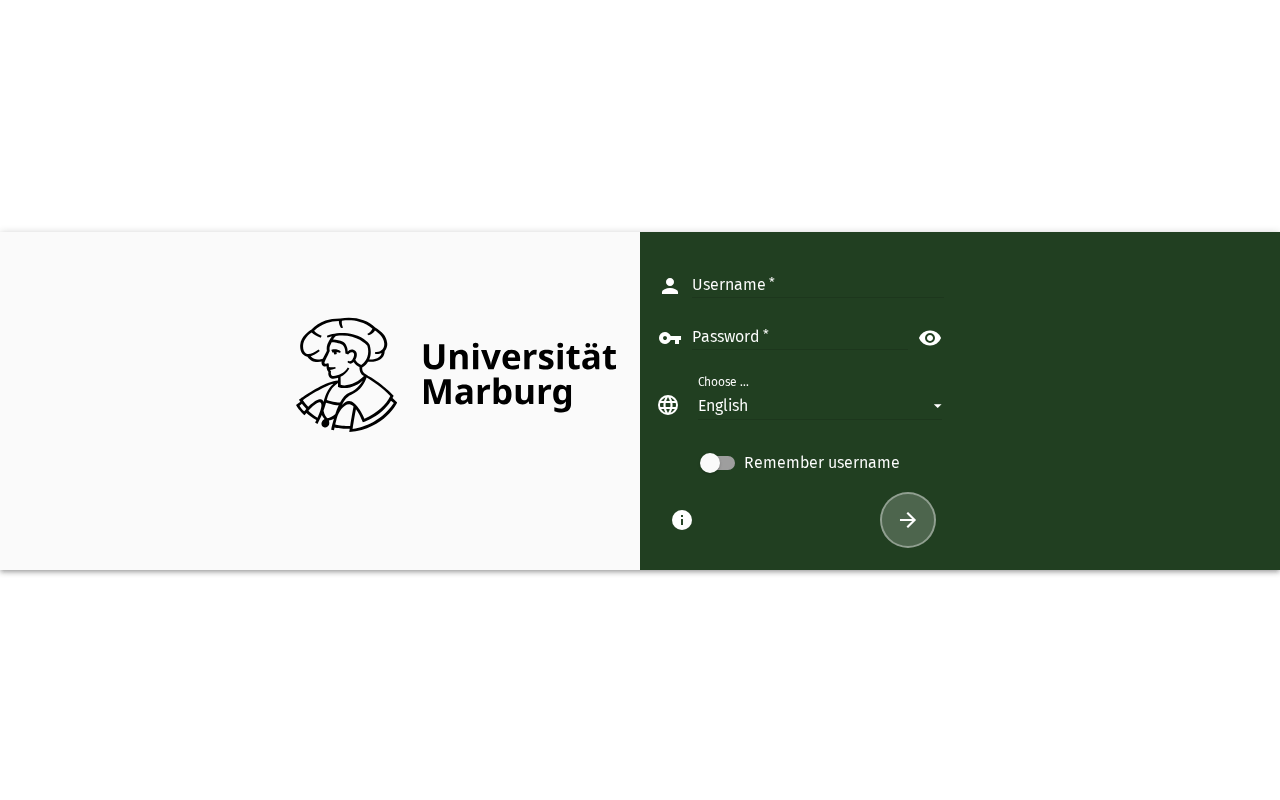
Open your browser, enter your SOGo 6 instance URL (e.g. https://demov6.sogo.nu/SOGo/), type your username and password, and click Login. After successful authentication you'll see the main dashboard.
Understanding the Interface
Once logged in, the SOGo interface is divided into three main areas:
- Left sidebar — Module navigation: click to switch between Mail, Calendar, Contacts, and Tasks.
- Top toolbar — Module tabs, the preferences gear icon ⚙, and the logout power icon ⏻.
- Main content area — Where the active module's content is displayed.
Preferences (Gear Icon)
Click the gear icon ⚙ in the top toolbar to open your Preferences. Here you can configure language, time zone, notifications, default calendar view, email signatures, and more.
Always click the green Save button to confirm your changes. Preferences are not saved automatically — if you navigate away without clicking Save, your changes will be lost.
Logging Out
Click the power icon ⏻ in the top-right corner of the toolbar to end your session. See Logout for details.
Accessibility
Keyboard Navigation
SOGo 6 supports full keyboard navigation for login.
| Action | Keyboard Shortcut | Notes |
|---|---|---|
| Navigate to username field | Tab from address bar | |
| Move to password field | Tab after username | |
| Toggle "Remember me" | Tab to switch, Space to toggle | |
| Submit login form | Enter on any field | |
| Cancel login | Escape clears form |
Screen Reader Workflow
- After page loads, screen reader announces: "Login, heading level 1"
Tabto username field — "Username, edit, blank"- Enter your username
Tabto password field — "Password, edit, blank"- Enter your password
Tabto "Remember me" switch — "Remember me, switch, off"Spaceto toggle if desiredTabto Login button — "Login, button"Enterto submit
High Contrast Mode
SOGo 6 currently does not have built-in high contrast mode. Browser/OS-level alternatives:
- Windows:
Win+Ctrl+Ctoggles high contrast - macOS: System Preferences → Accessibility → Display → Increase contrast
- Browser Extensions: Dark Reader, High Contrast (Chrome)